Showing posts with label support. Show all posts

Monday, January 29, 2024

AI Guardian - a summary post

This post will be updated for a week or two. It's to track those interested in the AI Guardian concept; this and similar posts have the tag "AIGuardian"

Friday, December 29, 2023

What I am up to these days - Smartphones for all (updated)

Update 12/29/2023

I've retired the Smartphones for all project, at least for now. I really couldn't find much interest in the topic, so I came to feel I was writing something just for myself. I have retired the sphone4all.com domain, it will be soon available for others (including, certainly, spammers can scammers - no way to avoid that).

I have moved archived the WordPress site as a subdomain of another domain I own. If for any reason you'd like to see the archives they are at:

https://www.sphone.bethebestyoucanbe.us/

I've removed the URLs from the post below.

Original: 4/2018

This blog is quieter than it used to be. There are a few reasons for that, but mostly I’m spending blogging time slogging away on the Smartphones for All book project — which is now iPhone specific. I publish chapter excerpts on a blog there every few weeks. Here are a few recent examples:

You can follow that project by blog feed, or on Facebook or visit the blog to see all the recent posts.

I no longer make predictions as to when I’ll be done. I know the topics to cover, I write and revise, one day it will be finished. I plan to do the Amazon self-publishing thing.

Saturday, November 11, 2023

AI and special needs adults: The AI Guardian is in sight

Over the past decade I've written on social media about the concept of an AI Guardian, but I realize I've never put it into a blog post [4]. With the release of the LLM AIs [1] including ChatGP4, ChatGPT plugins,  and recently GPT Agents (GPTs) the AI Guardian is much closer than I'd expected. So it's time to write something.

First, of course, I decided to ask ChatGPT. I've never seen the concept of an AI Guardian online, but evidently I've been looking in the wrong places. As of its April 2023 incarnation ChatGPT4 has quite a bit to say:

You: What do you know about the concept of an "AI Guardian" for special needs adults?

ChatGPT

The concept of an "AI Guardian" for special needs adults, particularly those with low IQ or autism, revolves around using artificial intelligence to provide support and assistance in various aspects of daily life. This concept is still emerging, but it has several potential applications: 

Safety Monitoring: AI can be used to monitor the individual’s environment for safety hazards or emergencies, alerting caregivers or authorities when necessary.

Routine and Schedule Management: AI systems can help in managing daily routines, providing reminders for medication, appointments, and other important activities.

Behavioral Analysis and Support: For individuals with autism, AI can analyze behavior patterns to predict and mitigate potential stressors or overstimulation.

Communication Aids: AI-driven tools can assist in communication, especially for non-verbal individuals or those with speech difficulties, by interpreting signs, gestures, or other forms of non-verbal communication.

Learning and Skill Development: AI can offer personalized learning experiences and skill development activities, tailored to the individual’s needs and learning pace.

Social Interaction Facilitation: AI can help in guiding and facilitating social interactions, which can be challenging for some individuals with special needs.

Health and Wellness Monitoring: Continuous monitoring of physical health, including vital signs, sleep patterns, and physical activity, ensuring prompt response to health issues.

This concept is still in its nascent stages and raises important considerations regarding privacy, ethical use, and the need for human oversight. It's crucial to balance the benefits of AI assistance with the dignity and autonomy of the individuals being assisted. As a physician with experience in health informatics [2], you'd appreciate that while AI can provide valuable tools, it cannot fully replace the nuanced understanding and empathy provided by human caregivers.

Well, that covered the bases. I would love to know what ChatGPT4 has been reading on this topic.

In our family iPhones and narrow focus AIs like Google Maps have been both an essential tool for independence and a screen addiction curse [3]. The ability to locate our children was key to them learning to navigate by bike and bus. Mapping tools compensated for very limited navigation ability. Calendaring helped with anxiety and organization. Notes and Reminders helped with memory and recall limitations. Beyond the obvious advantages of messaging we discovered both our children were better able to process text messages than verbal communication -- especially for difficult topics.

Now there is the near term prospect of far more support going forward. Monitoring email, messaging and apps for the scams and frauds that live on the cognitively disadvantaged. Monitoring financial transactions for worrisome trends and events. Monitoring home environments for worsening or dangerous conditions. Encouraging better diet and activity.  Acting as a job coach. Appropriately paced and reinforced lifelong learning. Guiding our children through the vast complexity of medical care. Even providing a form a companionship in time or facilitating finding company in the physical world. Doing, in other words, what Emily and I do after we are incapacitated or (inevitably) dead.

In the absence of personal immortality for Emily and I the AI Guardian is the best hope for our children's longterm health and happiness. Even as I have profound concerns about the disruption that comes with the rise of the modern AI I also have hope for a better options for the cognitively disadvantaged.

- fn -

[1] Some dislike applying the term "AI" to Large Language Models because they don't appear to be conscious or sentient.  Much of my professional career was loosely related to precursors of modern AI and there is absolutely no doubt that in 1995 we'd have called ChatGPT a bloody scary AI. The goalposts are mobile. LLMs are AIs by any reasonable definition. Insofar as we understand human cognition we do much of the same things that LLMs do.

[2] This "as a physician" bit startled me until I remembered that I'd given ChatGPT4 that information as a persistent context for our sessions.

[3] I tried writing a book on how best to balance these harms but I gave up when I finally accepted that there was absolutely no interest in such a book from the community I was writing for.

[4] A 2015 post on Google Inbox was the closest I could find on the topic of AI assistance. I tagged that nsAI for non-sentient AI.


Tuesday, October 11, 2022

Social media ad-based education on fake profiles soliciting funds

Our two special needs children are chronologically fully adult now. The challenges they face are increasingly complex but their capabilities have likewise grown.

As in the past their challenges are not unique to adults with a life history of cognitive and/our neurological disorders and diversities. They are, however, more vulnerable than most adults to social media predators who focus on loneliness and relationship frustration. I have a thought on what to do about that, but first I need to provide some context for people who don't live in this world.

In the past I had more control over our children's online actives. That is no longer true, most of what they do online is their own affair.  That's partly because managing online activities at any age is very difficult; parents and guardians fight against vast economic forces with little support from Apple or Google. Mostly though it's because they want and deserve the right to make choices, including bad choices.

The bad choices including falling victim to loneliness exploits. Being alone socially and sexually is one of the biggest hardships of adults with cognitive disorders. This is an intractable problem. Cognitively disabled males outnumber females by a large margin (the curse of the stunted Y chromosome) and social interactions including friendships and sexual relationships are almost always cognitively matched. Additionally friendship creation and maintenance requires significant social and cognitive skills.

Loneliness exploits are diverse and can shade into a straightforward business transaction. Is Patreon money solicited for custom art or storytelling an exploit or a commercial transaction or a bit of both? Is the "friendship" of the Patreon relationship different from my favorite writers responding to my tweets? How does this compare to "only friends" or phone sex or sex work?

Fake social media accounts are a step beyond the murky world of Patreon friends. All men receive Facebook and Instagram messages that feature images of beautiful women with large to absurdly large breasts. Most of us understand these are not entirely sincere, but this can be difficult to explain to a lonely adult with a significant congenital or acquired cognitive disability. They want to believe, they forget explanations, and for some the line between imagination, memory, and reality is fluid.

If the authors of these fake profiles were satisfied with small monthly stipends they could be considered just another step beyond Patreon purchases or "only friends" memberships. Sadly, the authors of these fake profiles are looking for large amounts of money. The problem needs our attention.

It's a hard problem to approach directly. "I was looking at the notifications on your lock screen and this beautiful woman is actually a desperate 43 yo man in a Sri Lankan sweatshop" doesn't go over well. Instead I'm going to try responding to the next large breasted invitation I receive and then use the thread to do "hey, look what I got, do you think this is real?" indirect education.

Which leads me to the idea that prompted this post. The best way to educate vulnerable adults about this problem would be a targeted Facebook and Instagram advertising program. These would be paid ads to vulnerable users to remind them that beautiful young women do not do not send flirtatious messages to strangers. 

It would be tricky to get these ads onto social media accounts; they aren't the kind of ad that attracts Instagram users. Government support could help, but the cognitively disabled community is too small and invisible to get political support. However the demential (acquire disability) community is large, growing, and politically important. So there might be a way to benefit the congenitally cognitively disabled community by targeting the acquired disability (dementia) community. I need to play with that idea a bit. 

It would be interesting to try running a small local campaign that targeted my son. If I do that I'll update this post.

Saturday, October 20, 2018

On autistic meltdown and exhaustion

Via Twitter I’m reminded of two autism blogs that have passed on - Musings of an Aspie (ended Jan 2015) and Everyday Aspie (2017)/Everyday Aspergers (2016). @mxmackpoet called out 3 in particular [1]:

All 3 match our family's experience from the (sort-of) neurotypical outside.

There is a lot of buried wisdom in these blogs written by people towards the neurotypical end [2] of the autism spectrum. It’s sad that these individuals no longer write on these topics, there really is no replacement for blogs and RSS notification mechanisms. I hope we reinvent them some day [3]. In the meantime I’ll use this post to remind me to explore. I hope one day our #2 will find these essays helpful.

- fn -

[1] It may not be chance that these 3 articles were written in dark times of the northern year. 
[2] It’s not really a linear spectrum of course. It’s some multidimensional space we can’t visualize. People further from the neurotypical space aren’t able to communicate as clearly, these writers are translators.
[3] Or simply recultivate what still exists. Lots of things wax and wane over generations.

Wednesday, July 25, 2018

ABLE Plans and Special Needs Trusts

#1 is now on either SSI or SSDI or both. Yeah, we’re not sure. Might even have changed. This is a lot weirder than I expected.

There is, with one or the other, apparently a peculiar incentive for caregivers to retire at 62 rather than, say, 67 (something to do with family Social Security caps and spouses). There’s also something in there about Medicare with MA Backup after two years on SSDI, claims that it’s best to do at least one year of SSI before SSDI, 9 month income averages, retroactive payments that can be clawed back and so on.

The accounting is interesting — trying to stay below income and asset caps.

With SSI/SSDI we can get an ABLE 529A account so that he can save without running over his asset caps. The funds can only be used for things that improve health/mobility/function — but that’s could cover a lot of ground. Maybe mobile data services? Fitness services? Golf gear? Bicycle?

The best discussion I found on ABLE plans was in the respected Bogleheads forum:

You are not going to find any 529 ABLE plan with no annual account fee and expense ratios of 0.1%, certainly for non-residents. I call the reason for this the "529/HSA Effect". While they might be quite popular among Bogleheads, only a distinct minority of the population takes advantage of either of those plans. With volume comes competition and lower costs. Now consider the minuscule population eligible for 529 ABLE accounts. If they hadn't been smart and piggy backed on Section 529, they would be even more expensive.

ABLE plans will have the same pattern as the majority of HSA accounts. Their owners will be making a number of withdrawals throughout every year such as by a debit card. Compare this to retirement accounts, where most withdrawals only happen in retirement and then maybe once a year. This adds significant administrative costs.

529 plans, especially ABLE accounts can only be administered by a state. When does a state see money and not figure out a way to skim off the top. The dirty little secret is that a significant portion of program management fees goes to the state. For example, Maryland and Oregon take 0.30% in administrative fees themselves in their 529 ABLE plans.

The best I have seen so far is LA ABLE for Louisiana state residents only. No annual fee, no program management fee and 0.07%-0.15% for six Vanguard funds, including the four LifeStrategy Funds. There is a state alliance of GA, KY, MO, NH, OH, SC, and VT that offers funds with asset based fees of 0.31%-0.34% for those state's residents (0.57%-0.60% non-residents).

For non-residents the National ABLE Alliance of AK, CO, DC, IL, IA, IN, KS, MN, MT, NC, NV, PA and RI. Offers funds with asset based fees of 0.34%-0.38%. Their program management management fee is 32% and I'm sure the states gets a significant chunk of that. The underlying expense ratios are 0.02%-0.06% (based on fixed portfolios using Vanguard, Schwab and iShares funds/ETFs). They have a $15 ($11.25 e-delivery)/qtr account fee.

The best plan for non-residents based on cost might be Tennessee's ABLE TN, offering Vanguard and DFA funds with asset based fees mostly in the range of 0.35%-037% (Wellington at 0.35%) with no account fees. As always the devil is in the details. E.g. the plan does not offer a debit card.

Do your own due diligence. You can check all the available state 529 ABLE plans here. 529 ABLE Accounts

Ugh. Much higher fees than I’d hoped for.

We’re working on the special needs trust. We’ll probably use Vanguard to hold funds, have to dust off old Trust documents to create the trust. Good discussion on Trust and home purchases here.

Sunday, January 28, 2018

Vulnerable user support: Qustodio review and PC Magazine parental control page

It’s been a while since I reviewed MMGuardian and similar parental control apps. The last time I did this I promised to took at Qustodio, but life got in the way. Now I’m back to the topic, preparing to update one of the tougher chapters in my book - Smartphones for All.

I signed up for Qustodio and quickly ran into some issues with possibly outdated documentation. I say “possibly” because there may be some quirks related to my subscribing with an old test account they gave me. So I’ll get to evaluate their user support too. I’ll put that post out after I get things fixed.

In the meantime I’ve put out a call for feedback on use of “parental control software” to support vulnerable iPhone users of all ages. I’d particularly like to hear from users of Qustodio and MMGuardian with iPhones.

PC Magazine (I remember their glory days!) did a pretty thorough review of Qustodio, through it I found their “parental control and monitoring reviews” stream. The latter is a good general resource, but they should have included MMGuardian.

The Qustodio review makes much of how ‘old’ the Qustodio site looks. I didn’t bother me, but having an ‘old’ looking site can be a marker for weak financials. The review is Android-centric, that makes sense because there are effectively no parental controls with Android. If you want something you need to pay. iOS devices have built in restriction abilities so they get less attention. They still hit most of the key points for an iOS users, but my review will be more extensive.

Sunday, September 10, 2017

Down syndrome traits -- many also true of non-Down low IQ adult

Recently I had the privilege of taking about smartphone support for special needs adults for the Down Syndrome Association of Minnesota. As a speaker I could attend the conference for free, including a talk by a psychologist, Dennis McGuire.

I don’t have a child with Down Syndrome (John Langdon Down’s syndrome has become Down Syndrome) but #1’s IQ is in the typical Down Syndrome range. So I was curious how much of Dr McGuire’s talk applied to my son. I decided about 80% or so — even though #1’s temperament is very different from the Down Syndrome athletes I know from Special Olympics and Minnesota Special Hockey. I suspect that overlap is primarily a result of cognitive disability rather than something unique to Down Syndrome (Trisomy 21). (By way of reference #2 is classic autism spectrum disorder but has a normal college range IQ. This list would not apply to him.)

For the parent of a child with a cognitive disability this is valuable stuff. I thought nobody studied these behaviors — but it turns out they are studied in Down Syndrome. We’ve figured most of it out by now, but it would have been good to have had this list 8 years ago.

From my notes …

  1. Often do better with written word than spoken word, even if reading level grade 2.* This includes texting.
  2. A minor misfortune that a neurotypical might quickly forget may produce a strong aversion or phobia. These can be lasting and may be very hard or impossible to verbalize. Re-exposure to the context or even attempts to describe it may reproduce the emotional response (PTSD-like)*. They may result in quitting a job that had been going well or dropping a favorite activity. These can sometimes be addressed over a period of a year or so — if the root cause can be determined.
  3. It is common to make poor word or phrase choices — perhaps for lack of a range of phrases. “Kill that SOB” for “I’m really made at him”. Some will response to a (written) list of alternative and more acceptable phrasings.
  4. “Self-talk”, monologues with gestures and dialog, are common ways to process events. They may include imaginary friends. They may be mistaken for psychotic delusions. Person with Down syndrome often need training to understand self-talk should be done in a private space.
  5. When doing “self-talk” may act out roles — consistent with a fondness for theater.
  6. “Stuck groove” - McGuire's name for repetitive behaviors with a compulsive aspect. Topics and phrases that must be repeated many times with minor variations. Arranging a desk to be “just so”.
  7. A preference for ordered environments and routines. “Stubborn” is the “S word" in the Down Syndrome community.
  8. A resistance to being hurried or made to move quickly — “slow” and “slower”. (FWIW #1 does not do this, but my #2 (autism) does. I’ve seen this a bit in special hockey, but I’ve also seen Down skaters race for the puck.
  9. Anger as a common response to not understanding, feeling pushed.
  10. Reactive “No” when asked if want to do something long desired.
  11. Strong orientation to place — often very good sense of direction.
  12. Love of food and food places.
  13. Strong visual memory but poor at time sequencing. May speak of things in present tense that occurred years ago. May have difficulty with timing of routines — not able to manage “15 minute” guide for shower.

I’ll ask my Down parents whether they think this list will be helpful in coaching our Down skaters. I know it would be helpful for managing my #1.

* Dr McGuire ascribed the asterisk items to a strong visual memory, even “photographic” at times. That seems plausible, but I don’t know if there are MRI studies to go with it.

Sunday, May 22, 2016

Universal data access for all Americans - what would it look like?

The NYT has another “digital divide” article, this time using Detroit. I think they might be doing a series on this topic.

The problem of net access isn’t unique to Detroit, it applies to every low income American, which includes pretty much every special needs adult. A smartphone (net phone?) isn’t an option, it’s a necessity for modern life [1]. That’s one the reasons I’m writing my book on smartphones for special needs teens and adults.

It’s not hard to give everyone a smartphone. We’ll be drowning in cheap Android devices soon. The problem is data access. Home WiFi, which is notoriously unreliable and complex, costs at least $35/month in most markets. Home WiFi is too complex for most people to maintain anyway. Cellular data costs about the same per month, but it’s tricky to meter and it’s per-person, not per-family. For a family of five we’re looking at $175 a month — too much for a low income family.

So we need some universal mobile data access that everyone gets. Something around 1GB a month. That’s enough to support essential interactions, but not enough for streaming video. 

I’m thinking we’ll either end up with something that’s funded by advertising (Facebook, Google) [2] or a public mandate. It might be a good idea to do both. Either way it will need to incorporate some kind of intelligent data use and filtering.

Whatever happens supporters of special needs adults should be engaged.

[1] Many government programs still have ancient web sites that don’t work well on a smartphone browser. The good news is that hackers are tearing those web sites apart, so they’ll need to be upgraded. In time we may need to bring ADA suits against government web sites that are not smartphone accessible.

[2] Low income advertising, best seen on daytime TV, is often predatory. That is, it’s advertising for services and products that are largely harmful scams. That will be a problem.

Wednesday, May 18, 2016

MMGuardian - Review of an iPhone parental control and usage monitoring service

Yesterday I wrote about using MMGuardian with an Android device. Today I’m continuing research for my book project and my upcoming local (St Paul, MN) presentation on May 25th by reviewing MMGuardian on an iPhone.

Google and Apple have taken very different approaches to remote restrictions on mobile devices. Google has almost no built in restriction capabilities, but third party products like MMGuardian or Screen Time can dig deep into the operating system. They can monitor and disable SMS or phone services and they can lock the phone on a schedule. I haven’t used MMGuardian enough to know if this affects battery life or Android stability; that probably depends on how much support Google has built into Android.

For a parent, or a Guide working with an adult or teen with a cognitive disability, the iPhone restrictions are a big improvement on what Android provides. On the other hand, if you pay the $35-$60 a year for a 3rd party service, Android pulls ahead.

So how does an iPhone plus a third party service compare?

The short answer is that Android plus a third party service is better than an iPhone plus a third party service. At least if the service is MMGuardian, but as I’ll explain below I think it’s the same for all vendors. Compare this iPhone screenshot on the control portal (family.mmguardian.com) to the one I did for Android yesterday:

iPhone

MM Guardian

Android

MMGuardian Android

MMGuardian provides identical web filtering options for both platforms, but on Android phones MMGuardian provides fine grained control of app behavior. Individual apps can be turned on or off including apps that access media. For iPhones the only option is to disable access to video (movie and TV but not music video) and any apps purchased from the App Store [1]. Apple’s native apps, including Music, are not affected; a different control allows remote disabling of Safari, FaceTime and the camera. 

I’m sure MMGuardian’s iPhone limitations are actually Apple’s limitations. I’ll go over that in a technical appendix, but I did find one problem that belongs to MMGuardian:
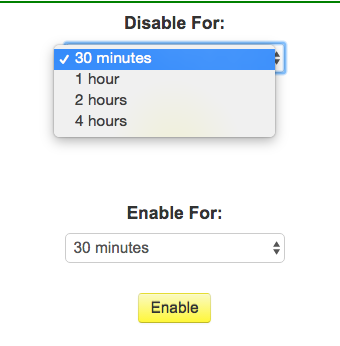
MMGuardian Disable Issue

Both of these drop downs have the same options. So what do you do if you want to undo a Disable action? When I clicked Disable a 2nd time I got an error message saying the phone could not be reached. That’s a bug of some kind.

When I clicked Enable for 30 minutes everything returned — but what happens when the 30 minutes expire? Does it return to disabled? (It stays enabled — this is just a poorly structured UI. The options shown in this screen should change based on the Time Limits screen.)

MMGuardian for iPhone costs $20/year and there’s no family plan. MMGuardian for Android costs $35/year but there’s a $70/year family plan. I think MMGuardian (or something like it) is a necessity for an Explorer’s Android, but for an iPhone Explorer it’s not as simple. Most of what MMGuardian does, except for the web filtering, can be managed through the iPhone’s native restrictions.

Even so, I would have said MMGuardian is worth it for many Explorers — but I give the vendor two demerits for failing to document the uninstall procedure! This is particularly odd because it is well documented for Android devices.

Perhaps it is not documented because, unlike Android phones, there’s nothing to stop the restricted user from doing the uninstall themselves. In Settings:General Scroll down to find a Profile or Managed phone setting. Tap on it until you get the remove icon, then remove the profile. Now delete the MMGuardian app. Deleting the Profile will cause MMGuardian to send a notice to the Guide’s email address.

Once you’ve done this (but not before), you can go to family.mmguardian.com Settings and Delete the number from the MMGuardian account.

I get that MMGuardian doesn’t want to admit that device management can be so easily circumvented, but hiding the documentation is doing them no favors. It’s not something they can fix by the way, Apple has historically required ‘the consent of the governed’ for Mobile Device Management (they are changing that for schools, where, shockingly, the governed are rather rebellious).

In practice, for the Guide/Explorer relationship, “consent of the governed” isn’t necessarily a bad thing. Even in the parent/child setting, the removal of this kind of protection can lead to a productive conversation on the relative merits of a $50 flip phone.

Beyond the missing uninstall documentation it’s frustrating to be unable to block access only to iTunes movies and TV shows (blame Apple!), but it’s very helpful to be able to manage restrictions without physical control of the iPhone. The web filtering and reporting options, which (as with Android) require use of the MMGuardian browser, are a big improvement on Apple’s built-in controls. What we really need, of course, is for Apple to provider more options for MMGuardian and others to use.

The Technical Addendum

I’m going to get more technical here than I usually do in a Best You Can Be post. I mentioned that Apple is responsible for the gap between what MMGuardian can do on an iPhone vs. an Android phone, here I’ll explain why that is.

Apple and Google took very different approaches to phone design. Apple’s focused on security, privacy, reliability, usability and control, including directing phone revenues and services through Apple.  Google has focused on maximizing advertising revenue and extracting behavior data while minimizing overhead.

These different approaches have produced quite different devices. Apple’s approach means there’s effectively no malware on Apple iPhones, but developers can only do what Apple allows. Internal security is strong and developer violations are punished. Google’s approach means Android malware is now common, but developers have a lot of freedom for good as well as evil.

In the case of remote restriction what Apple allows is determined not by the needs of Guides and parents, but by the needs of corporations and, to a lesser extent, schools. The smartphone industry, including Apple, calls this set of capabilities “Mobile Device Management” or MDM. To a large extend Apple’s Mobile Device Management options for remote management use the same software infrastructure as the iPhone Restriction settings.

Apple provides Mobile Device Management through an application called Profile Manager that runs on their low OS X server software or through Configuration Profiles managed by Apple Configurator. Other vendors do similar things (and usually manage Android phones too), including JAMF Software’s Casper Suite, Cisco’s Meraki Systems Manager, and Mobile Iron’s Enterprise Mobility Management.

MMGuardian is providing a simplified from of MDM for Guides and Parents, and they’re adding in some custom built web filtering (which also works on Android). Unfortunately, like everyone else in this iPhone space, they’re limited to what Apple supports. Apple, so far, has been mostly supporting what corporations are asking for, not what we might want.

- fn -

[1] After writing this I learned that one can disable TV, Movies or Apps separately in manual restrictions. I thought one could only set age limits. I would like MMGuardian to provide separate controls, not an all or none setting.

Tuesday, May 17, 2016

MMGuardian - review of an Android parental control and usage monitoring application

One of the last pieces of my book project, and a part of my upcoming local presentation on May 25th, is a discussion of smartphone restrictions and controls. 

I’m familiar with iPhone on-device restrictions, but Google didn’t build anything like that into Android for phones. Android users need to find a 3rd party solution.

Finding that solution isn’t easy. This isn’t the 1990s; most of the journalists that used to write about these things are out of business. I used geek-power to narrow my options to two products - Screen Time and MMGuardian. This post has my initial impression of MMGuardian, I’ll do another one on their iPhone product then I’ll try Screen Time for Android.

MMGuardian is easy to setup. You start by installing their app on the target Android phone (typically an Explorer or teen’s phone); you can find it on Google’s Play Store or from the MMGuardian web site. The app is called “MMGuardian Parental Control”, not to be confused with a different app that can be installed on a Guide’s phone for remote management. 

There’s a free two week trial, and for once you don’t start by entering a credit card. To enroll you launch MMGuardian Parental Control and complete a short form. After initial launch a second app will be installed called MMG Browser. That’s what an Explorer will use in place of Chrome; MMG Browser.app works with MM Guardian’s Web Filter service. (I assume MMG Browser is a wrapper over Chromium, Google’s web browser platform.)

I used the online web interface to do remote management of my Android test phone. Go to family.mmguardian.com and enter the credentials you setup earlier using MMGuardian Parental Control.app. The “user name” is your email address. 

There’s a good range of controls …

MM Guardian

In my early testing the commands send from MM Guardian’s acted within a few seconds, only the very first message failed.

App Management is quite different from iOS. iPhone apps can only be installed from Apple’s store, so it’s easy to disable installation. Android apps can be installed from any source, there doesn’t seem to be a simple way for developers to block all installations. Instead MMGuardian creates a list of apps that are allowed or blocked based on what is on the Explorer’s phone; new apps are blocked until review.

MM Guardian is looking pretty good so far. It’s $35 a year for a single phone, or $70 a year for up to five Android phones.

Monday, April 18, 2016

Google - Accessibility isn't only about vision and touch, cognitive disabilities are neglected.

Google got some good press recently for a $20 million dollar accessibility project developer grant. It’s a good initiative, but Google’s Accessibility site doesn’t consider cognitive issues.

That’s a shame, because there’s a lot Google could do. They could, for example, read my book (not published yet, but I’ll provide preprints). Of course Google isn’t alone, neither Apple nor Microsoft nor Facebook have built in support for teens and adults with cognitive disabilities. Depending on how one defines cognitive disability this is a much larger population than adults with visual and mother disorders.

There’s a lot Google could do, and there are good commercial reasons to address this need. Just as wheelchair sidewalk curb cuts have been a boon to strollers and elder walkers, cognitive adaptations also apply to many elderly and most children.

What kind of adaptations?

The obvious adaptations are scalable interfaces, such as simplified versions of Google Mail or Google Calendar. There are other angles to consider though. In Smartphones for All - Using iPhone and Android to build independence for atypical minds I write about the role of Explorer and Guide. Google, Facebook and Apple could explicitly support the role of the Guide, including delegation of identity. The Big Three could provide a formal way to apply restrictions designed for under 18 to over 18 adults with guardians or delegated Guides.

Some of these adaptations take more work than others, but in many cases we’re more than half-way there. Web services that work with both smartphone apps and a Chrome browser with Profile support enable the Guide role today, they can be extended and formalized.

The first step is for Google, Apple and Facebook to put cognitive disabilities on their roadmap. I like to think they just haven’t known how to start. All they need to do is read this blog post…

Friday, March 04, 2016

Managed identity for the special needs Explorer: iCloud makes aliasing easy

From Smartphone for all …

When you first begin supporting your Explorer a single address for them to send and receive email is fine. You may find, however, that you want another, secret, address for your Explorer. You might not want to expose their private email address when signing up for Facebook for example. You may not want them to be able to reset their bank account password. With experience you’ll find many occasions where want to use an email address for an Explorer that sends email to a Guide.

There are three ways to create this kind of email address for an Explorer, depending on what the Guide is familiar with.

If the Guide is using iCloud things are very simple. iCloud email has elegant support for up to 3 “aliases”. A guide can create an “alias” for an Explorer; that email becomes the Explorer’s “managed identity”. Here’s an example of an alias created for a famous Explorer - Meriwether Lewis of Lewis and Clark fame:

Meriwether Lewis alias.png

If Meriwether were my Explorer and I configured this alias on my iCloud email then I would receive email sent to mlewis_ident@icloud.com (careful, someone is sure to create this email address, I don’t use it!). I might do this so I can monitor Facebook activity and control password resets for example. (see Facebook Social and Facebook Messenger). See Apple’s support note for more information: https://support.apple.com/kb/ph2622.

If a Guide is using regular Gmail they can’t create an alias. They can, however, open a new Gmail account for the Explorer and set it to forward email. This is awkward and requires yet another password to manage, but it only has to be done once.

Lastly, technically oriented Guides will know of other email redirect options that are beyond the scope of this book. (I don’t recommend using a free redirect service however, there are too many security risks.)

All of these approaches will work to create this extra, secondary, email address. This secondary address doesn’t get entered into your Explorer’s phone, it’s just for use by a Guide, typically though a web browser like Chrome. 

You don’t need to add this second, Guide-use only Explorer email at first, but keep it in mind as you gain more Guide experience.

Tuesday, February 23, 2016

Smartphone for all: Promoting independence with home video monitoring

I’ve rewritten my chapter on Nest Cam use: Special needs smartphone: draft sample sub-chapter on Google Nest Cam use. In the new version I go into more detail on how video monitoring can be used to support independence. Use may be transient…

For Explorers with life-threatening medical disorders home video monitoring may be a longterm aide. For this use the Nest Cam (or other) video-active light would be active. That is, the Explorer knows when they are on video. The Nest Cam may be setup in a kitchen or living room. This kind of use is very similar to using video monitoring for elderly parents.

For many other Explorers, however, video monitoring may be a temporary aide to independent living. An Explorer may become dependent on  having a Guide nearby, when left alone they may become anxious, particularly anxious about meeting expected behavior standards. Anxiety can translate into problem behaviors, such as harassing siblings or arguing with roommates. In this case a home video monitor can be a transitional aide, a step between having a Guide at hand and going solo.

In this case the Nest Cam video on light may be either enabled or disabled; Guide and Explorer can experiment with both methods. A Guide may leave a home and observe remotely, then decrease observations and increase time away as both Guide and Explorer gain confidence. After initial use the monitor may be used very infrequently and eventually removed.

In another situation there might be a concern about what time of day an Explorer living on their own leaves for work or school. A guide might use the techniques in the Tracking Location chapter to check in this, but either an on-demand, or more conveniently, a stored video record could help. Once the concern is managed the stored video feature an be discontinued or the camera can be removed. Stored video may also help with reviewing home visitors if there are concerns about exploitation of a vulnerable Explorer.

In many cases a Nest Cam or similar video monitor may be used for a limited time, you can remove your account information and another person can use it.

Wednesday, February 17, 2016

Smartphone for All: Working with a budget

I’m still working on a Smartphone for all chapter about how to manage smartphone costs within the typical $92/month SSI disability managed residence personal spending budgets and the rules around external support, but I do have first drafts for introduction and carrier selection…

In the United States the least expensive useable and reliable smartphone mobile plans cost about $30 a month. A reliable low cost smartphone, with typical tax and shipping, costs between $120 for Android and $285 for an iPhone. That means a cost of about $840 over the typical two year lifespan of a low end Android device, or $1,000 for a refurbished iPhone (but the iPhone will last longer).

This cost is high for an Explorer on a typical low fixed income, but without careful shopping the price can be much higher. With a deluxe iPhone and a premium mobile plan total costs could exceed $2,770 over two years! Mobile carriers are good at getting consumers to pay these very high prices, but this would be disastrous for most Explorers. Even a yearly average cost of $840 to $1000 is going to require careful budgeting and control of data use, it helps that a smartphone replaces a $250 landline.

and 

It used to be quite hard to know what it really cost to buy a smartphone and buy carrier services. It’s easier than it used to be, but sorting out costs can still be confusing.

The best approach for a Guide to start by choosing a mobile service provider or “carrier” that works for your Explorer. All US carriers support both iPhone and Android, and once you choose a carrier you will have more options for choosing a device. More importantly the cost of mobile service over a two year interval will usually exceed the cost of an appropriate smartphone.

Unless an Explorer can be added to a “family plan” at an affordable rate, carriers like AT&T and Verizon are too expensive. Instead begin with a look at T-Mobile or small carriers that resell big carrier services. The latter includes Republic Wireless, Consumer Cellular and Ting Wireless. 

Ting Wireless is a good reference point. Their web site is a marvel of clarity. With Ting customers purchase base capacity and overage fees are relatively affordable. Ting allows alerts and usage caps to help users stay within their budget — those are big features for low income users.

A typical Explorer may use less than 60 minutes of “talk time” a month, less than 100 SMS messages (ex: Facebook Messenger is free), and 500 MB of data no video. At Ting Wireless those services will cost $24 a month plus “regulatory fees/taxes” (likely @ $30).

Ting, like many of these low cost no contract carriers, sells low cost devices including refurbished used smartphones. This is a cost-effective and relatively trouble-free way to purchase a smartphone. As of Feb 2016 a refurbished iPhone 5c sells for $237 and a new Samsung Galaxy sells for $110.

In some cases an Explorer will have a used device, possibly from a family member. Ting will confirm if the device works with their service.

Whichever option you choose watch for hidden fees. Some carriers have hidden “activation” fees and all carriers exclude “regulatory fees and taxes” from their list prices. T-Mobile often hides its best deals, Google will help find them. Even if you don’t end up using Ting Wireless, their prices make a good comparison.

In terms of supported smartphone use I wonder how often families “loan” a device…

Wednesday, February 10, 2016

Smartphone for all: "Parental" controls and managing messaging abuse

It’s hard to get good information on managing smartphone use for a vulnerable person — aka “parental controls”. Especially for Smartphones.

Vendors sites often promise more than they can deliver and provide little information on how they work. Vendors are also understandably reluctant to discuss side-effects and problems. The tech resources I trust tend to dislike the whole idea of parental controls (writers are too young!), and Google search results are dominated by vendor sites, spam blogs, and under-resourced newspaper columns. Parents and “Guides” (supporters of vulnerable users, aka “Explorers”) are truly at sea.

Ok, so “At sea” is a bit polite. Screwed is probably more accurate. The next time your TV tells you that that it’s “easy to monitor your child’s smartphone use” you have my permission to put a brick through the screen.

It’s hard to get reliable information, but I need to cover this topic in my smartphone for all book. So in this post I’m going to share my current impressions — I’d love to get comments here or elsewhere. My impressions are certain to change as a I learn more. For insight on Android solutions I need to credit a review by Brian Hall [1]; just ignore anything he says about iOS and iPhones. For example, he is impressed by the ability of third party Android apps to track location or limit app installation — but those capabilities have long been part of every iPhone. I don’t blame Brian, it’s hard to know both Android and iOS [2] and content farm writing is hard work.

My impressions:

  • Brian’s article focuses on filtering and restricting rather than monitoring. For a vulnerable adult I think monitoring is just as important — but it’s harder to do.
  • iOS (iPhone) has far better built-in restriction options than Android, but it needs better texting/messaging controls and it needs time limits [3]. If you want to restrict or eliminate Text Messaging on a stock iPhone you need to both disable iMessage [4] and have a mobile carrier that allows restriction or monitoring of SMS texting (typically for a non-trivial monthly fee).  A parent or Guide may consider something like Facebook Messenger (https://www.messenger.com/) [5]. Messenger’s web client makes it easier to monitor than SMS or iMessage — assuming one has control of an Explorer’s credentials. It can be used separately from Facebook.
  • It’s easier to extend Android than iOS, so Android plus a separate app and service has some advantages over iOS. This may be particularly true for texting controls. I don’t know how these impact device reliability or usability, I read that some of them are difficult to install. From Hall’s review I’d say Norton Family Premier is the only solution worth looking at, but it has weak texting/messaging controls
  • This party solutions for iOS leverage the tools Apple built for corporate iPhones. These tools are limited but they are well tested. The main strength is web filtering and monitoring, but that’s less useful in the Facebook age when, for many “Explorers”, browsers can be disabled with little impact. (Disabling the browser is easy to do on iOS, but requires a third party product on Android.)
  • Social networks (Facebook, Snapchat, Instagram, etc) can only be monitored by using a user’s credentials; that is, by assuming their identity. This probably violates the Terms of Service of these businesses and it’s too complex for many Guides or Parents to take on. I do discuss it in my book though.
My primary surprise is how hard it is to support safe use of old school SMS/Messaging. It seems to have never occurred to Apple that this would be a good option to provide, and, of course, Android defers all of those concerns to third party developers.
 
- fn -

[1] Published on a content-farm site with a name suspiciously reminiscent of Tom’s Hardware, a famous geek resource. Such is the state of the 2016 web. Once BYTE would have done a fabulous review, but it died long ago. I think we pay a price for that kind of absence.

[2] So have sympathy for me!

[3] Time limits are usually more important for children than for independent adults with cognitive disabilities. Lack of texting/messaging controls are annoying though.

[4] Log out of iMessage in Settings, then lock accounts in restrictions.

[5] Yes, Facebook, famed invader of privacy and exploiter of customers is now the “safer” option. For now!

Monday, February 01, 2016

Smartphone for All: Examples of using Apple Notes.app or Google Keep.app to extend memory and independence

A Smartphone for All: book excerpt, from a chapter on using Notes. 

This post has been updated with some excellent additions by Deb T. In addition to being a part of the book, it also illustrates how complex a special needs adults independent living really is.

————

Whether an Explorer is following the Apple Way or the Google Way their notes will look very similar. They’ll typically start with a handful of Notes created by a Guide, but the number will grow over time. Some Explorers will add their own Notes. 

Most Explorers will prefer to browse Notes rather than search for them. Typically Notes will be ordered by the date they were last changed with the most recently changed Notes at the top. The first line of a Note will typically show as the Note title, so make it descriptive.

If an Explorer is using the Search ability they are probably also creating and editing their own Notes. When using this function it’s helpful to put likely search terms in the note, perhaps as a list of words at the button of a Note.

Notes can be organized into named collections called “Folders” in Apple Notes.app or organized by “Labels” in Google Keep.app. This adds complexity however and should only be considered if an Explorer has more than 50 notes and really dislikes using Search.

There are many ways to use Notes to extend an Explorer’s memory. The following table gives a few examples taken from real world experience; this table also shows how complicated an Explorer’s routine can be.

Many of these Notes hold non-sensitive or public information, but some require that both the Explorer’s smartphone and Cloud information are truly secure. We reviewed this in Setting up an Explorer’s Smartphone including an encrypted smartphone, long letter-number smartphone unlock codes, fingerprint identification, a responsible Explorer, short timeout auto-lock, and a strong Cloud password.  Some low end Android phones may not be encrypted, don’t put confidential information into Google Keep on those devices. In the table below items that require a secure device are italicized.


Note Title

What’s in the Note

Banking information

Bank account information, how to make deposits or withdraw money or find balance, ATM PIN code if Explorer has difficulty remembering it, numbers to call for a lost or stolen credit card.

Bicycle

Bike maintenance advice, serial numbers, what to do if lost or stolen.

Budget

Notes about when bills are due, how to pay, wise limited on spending.

Church, Temple, etc

Names of religious leadership, times of services, people who are part of religious life, social events coming up.

Clothing sizes

Sizes for clothes, boots, shoes.

Combination locks, PINs and passcodes

We all have too many of these. A single Note is a good way to hold them all, but of course this requires a secure smartphone and a secure Cloud.

Dates

Important dates, such as birthdays and anniversaries. (Duplicates what’s on the Calendar, but often useful to have separately.)

Emergency Information

Who to contact in case of an emergency. This is not the Emergency information that’s part of Apple Health.

Family photos 

How to view family photo shares.

Financial worker

For many Explorers the Financial Worker (benefits admistration) is separate from the Social Worker and there are different procedures to follow. Some Explorers will want Notes combined, others will like separate notes.

Fun stuff

Notes to support local recreation, leisure and fun activities; a helpful resource for independent time scheduling. An Explorer or Guide may use this Note when working on the Calendar. For example: movie theater, pizza and sub delivery, church, etc. Gym information might go here instead of the Gym Note.

Gym information

Open hours, class schedule

Home

Apartment/group home details including contact numbers (also in Contacts), look out procedure, how to request maintenance, how to work with the rental office.

Library information

Schedule, library card number, WiFi procedure.

Medical history, dental and health insurance numbers

To share with caregivers, particularly in an emergency. Includes major medical problems, current medication, providers, people to contact, insurance numbers.

Neighbors

Names and addresses of neighbors, particularly for Explorers who have difficulty remembering names or matching names to people. This may duplicate what’s in Contacts.app (address book) but is helpful to have separately.

Passwords and credentials

Username, passwords, web site address (URL), “Secret questions” with the answers used.

Relatives and special people

Names and birthdays of extended family and special family friends. May be combined with Neighbors.

Residential program manager/staff contacts

Some of these will also be in Contacts, but this is important information for many Explorers. It deserves a separate Note.

Smartphone tips and how to

Basic smartphone tips. If appropriate for Explorer a reminder of how to find the smartphone manual (example: iBooks).

Social worker

Name of social worker and how to work with them, particularly around bus and transit services. The Transit Note might refer here, and the Social worker information might also be in Contacts.

Social Security and Disability Information

Contacts and details, spending limits and reporting requirements.  Date of next follow-up (this would also go in the Calendar).

Sports teams and social group

For each sports teams and social group useful information such as link to team calendar, names and numbers of coaches and players.

Staff and aides

Names of support staff and contact information. This will also be in Contacts.app

Transit

Guides to transit including bus pass information if applicable. Reminder of how to use a transit app to get bus information. 

Travel and packing

Packing and travel advice for a short trip.

Web addresses

Generally web addresses will be part of other Notes or they’ll show up on the Credentials page, but in some cases it’s useful to have a short separate list.

WiFi locations and WiFi passwords

Explorers need WiFi to backup their smartphones or download new apps, but they may not have WiFi at home. In some cases it may be useful to list locations and passwords, such as Coffee shops or the Apple Store. Library WiFi information may go here or in the Library Note.

Work and work training program.

Supervisor and care manager and any work requirements or procedures including transportation arrangements.


This is a long list, but the the more independent an Explorer is the more their Notes collection will grow. A Guide should start with 4-5 Notes then work with an Explorer to build out the Notes collection.  Many Notes may begin as information sent in an Email; very few Explorers will search email for reference information.

Some Note content overlaps with Calendar and Contacts. A moderate amount of duplication is needed, but too much becomes a maintenance burden. The appropriate location will vary by Explorer, but the Calendar is particularly important.

Most Explorers will learn to update and manage their Notes; that is a great life skill to encourage. Managing Notes includes deleting obsolete Notes, a Guide will want to make Notes review, including deleting obsolete Notes, a part of their scheduled weekly Explorer support time.

Wednesday, January 20, 2016

Smartphone for all: the Guide is impersonating the Explorer. There's a problem there...

It’s only in writing or teaching something that we come to understand it. I’ve been guiding my two special needs Explorer’s using their iPhones for at least five years, but I only today realizes why the Guide role works — and why it might get harder.

I’ve put the key concepts into a book chapter (Smartphones for all) about Guide tools:

A Guide could implement many of the recommendations of this book by working on an Explorer’s smartphone every evening. You could take it in your hand and review emails, enter Calendar items, update Contacts, review Facebook Group membership and so on.

You could do that, but it wouldn’t be practical even if your Explorer lived with you. If your Explorer is an adult with their own residence it’s even less practical.

The Guide’s role is possible because of two features of today’s digital world. One is that information on a smartphone is commonly synchronized (actively duplicated) with a secure online store. The other is that it’s possible for a Guide to assume an Explorer’s identity if they know the Explorer’s digital credentials, typically their “user name” and password. These two features weren’t designed to make the Guide role possible; nobody at Google or Apple has been thinking about Guides and Explorers.

It’s easiest to understand this using an example like a Calendar. A capitol-C Calendar is how this book identifies a calendar viewed and managed by an application like the iPhone’s Calendar app (Calendar.app). A Explorer views today’s Events (appointments, scheduled things they need to do) on their iPhone, but the same Events are stored online. A Guide, using the Explorer’s credentials, can manage the Explorer’s Calendar Events using a web browser. Whatever changes the Guide makes will, typically within a few minutes, appear on the Explorer’s iPhone.

The ability to assume an Explorer’s identity is a tricky issue. Many children use their elderly parent’s credentials to their online banking, and bank staff know this very well, but it’s also explicitly forbidden. Google and Apple usually know a smartphone’s location and more or less know where a computer is located — having the same digital person in two places will trigger email warnings. For at least the next few years this will be manageable, but we Guides need to all encourage Apple and Google to support proxy users, either by better  ways to share things like Contacts and Calendars, or by formally supporting someone like a Guide. The good news is that aging parents are going to drive changes that will also support younger Explorers.

I’m pretty sure neither Google nor Apple have thought much about the needs of a special needs smartphone user, though Apple in particular has done quite a bit of work to support persons with motor, visual and auditory disabilities (“accessibility”). So they probably haven’t considered why hacking into someone’s email might be a feature, not a bug. I expect it will get harder for one “person” to be in two places at the same time; we might in time see more than warning emails.

There are several reasons for optimism though. When we leave our computer at home logged into our online accounts, and work with the same data on our smartphones, our digital self is in two places at once. A second reason is that the education market has similar needs for a supervising person to work with a student’s account data.

Most importantly however my generation are going to create large numbers of customers who are being supported by their children.

Current trends are encouraging. Banks are adding authorized surrogates and Google and Apple will likely do the same. Google already has the concept of an “Inactive Account Manager” to provide authorized access to a second user in the event of death, disability or disappearance. Apple has the concept of the iCloud “Family” for sharing media and locations. Both Apple and Google support some sharing of things like Calendars.

We have multiple market needs and the outlines of several solutions. So I think the ethical impersonation that allows me to be a Guide is going to go legit. Maybe this blog post will help a bit, and I’ll try to get something like this into a bigger forum. I’m hoping the book will help a bit too. Know anybody at Apple or Google who wants a copy?

Thursday, December 24, 2015

Autism and interest depletion - leveraging routines, calendars and checklists

As #2 enters late High School his interests have narrowed considerably. This means he has fewer options if he bores of the interests he does have, and increasing amounts of his time are spent in passive and compulsive screen activities that seem to produce dysphoria and ennui rather than satisfaction or happiness. It’s a common trend that seems unlikely to lead to a satisfying or independent life.

Fortunately, he’s aware of this and, when he’s not working through what I think of as an “autistic-arrest” (sudden deterioration in perception of self and context, often associated with anguish and psychic distress), he’s interested in working on it. He’s had some success, including introducing new activities like mountain biking, weekly five mile walks and routine calendar review. We’ve created an inventory of his interests categorized by:

  1. Enjoys with cravings -- time limited by parents/external actors
  2. Enjoys with cravings -- no time limited (bouncing on exercise ball in in this group)
  3. Enjoys but no compulsions — tend to get displaced by craving activities, but if initiated they are enjoyable for him
  4. Sometimes enjoys, feels good after doing. All exercise except bouncing falls into this category.
  5. Things to try — items we (he, us) have selected to try to broaden his interests and provide him with more options.

As per the book excerpt on calendaring, we’re working with him to create recurrent schedules for his Category 3-5 items, staring with book reading. He’s receiving a small stipend for each book completed; he finds it very helpful to have us give him a concrete reward for completion of a new or challenging activity. It’s a curious part of his temperament that we’ve all learned to leverage.

Our thinking about this has been supported by some archived 2007 writings by Joel Smith, an autism activist. (#2 adamantly refuses to read blogs or writings by people with autism, but I follow Joel’s current blog). Joel was using a PalmOS PDA back then, my book project is about smartphone use.

This Way of Life: Living With Executive Dysfunction (Joel Smith)

… Train yourself to follow a routine, with few deviations. The closer you follow a standard routine, the more likely you are to remember it … The more frequently you use a routine, the more likely it is to become a habit…

… solving the executive function difficulties probably won't solve the problem without you first solving the other underlying problems. In addition, your strategies will not motivate you to do a task you don't want to do. These strategies will only help you perform tasks that you want to do…

… Get rid of strategies that don't work. If, after a week you aren't able to establish the strategy, it probably won't ever actually work. If, after a month, you are still doing the strategy, you will probably be able to keep doing it…

… Sggab (amanda at autistics.org) finds that having someone else to watch over her helps her to complete tasks and overcome the problems with starting a task. Some people find that having others call and remind helps get a task done. However, others claim that such reminders only reinforce inertia, so this may be very individual specific…

… Kalen (news at paradox.freeserve.co.uk) says that an externally imposed schedule, such as the kind of schedule a student in formal education must follow, helps her start all her other routines, and also improves her overall functioning…

… I use a Palm Pilot to help organize my time. Even the cheapest Palms, such as the will help some who have executive function difficulties.

The most useful features of the Palm are the to-do lists and calendar. One of the advantages of some of the newer models is the "silent alarm" feature. Reminders can be set to alarm by vibrating instead of beeping, which allows you to get your reminders discreetly and without disturbing others in a class or event.

I also use an enhanced version of the Palm ToDo list, called “ToDo+”...

The entire article, and his reminders and checklist page, are well worth reading for other approaches to routines like eating, dressing, taking medications, paying bills and the like. I’ll be referencing his advice in the smartphone book.

Book chapter excerpt: Smartphone calendaring and special needs

For the book. Comments welcome …

Calendar management is one of the most powerful smartphone tools for independent living. Knowing what to do when takes a lot of memory stress away. The Calendar is where healthy and helpful habits are maintained. It can be very hard for spectrum Explorers to initiate new work, scheduling it on a calendar can be a good launch step. Special Hockey games, doctor’s appointments, work schedules, study schedules, screen break times, family outings, dates, holidays — it all starts with the Calendar.

That was true in the days of the family wall calendar, but the smartphone Calendar is a big improvement. It’s always at hand, appointments have reminders, and, best of all, it’s easy for one or more Guides to manage an Explorer’s Calendar.

Calendars are powerful but relatively easy to use. Every Explorer able to read at a 3rd grade level will be able to use a smartphone Calendar app. The key is to practice and reward Calendar use. The “Guide’s Toolbox” chapter described a general approach, with the Calendar there are some simple specific techniques. One is to respond to most “when” questions by asking your Explorer to access and review their smartphone Calendar.  Another is to reward routine daily review of the current and next day’s Calendar. Some Explorers may be stressed by the imposed structure of formal Calendar, in this case you will need the usual mixture of patience, reward, pressure, support, persistence, strategic retreat, reframing, empowering and more persistence. Just like everything else that’s new and important.

Of course this assumes that you are also using a Calendar effectively! Actions and examples always mean more than words alone. You’ll want to be comfortable with your own Calendar use before you introduce Calendaring to your Explorer.

….

Apple and Google take similar approaches to Calendaring, but there are some important unique advantages for each one. 

Both Google and Apple have Calendar apps that work well with your smartphone. Both allow a Guide to remotely manage and review the Calendar from a web browser, including adding new items remotely. Both Google and Apple support invitations to Events, Event locations with integrated maps, and calendar overlays. Calendar overlays are pretty useful, they let users see several people’s color-coded events in a single integrated calendar. 

On the smartphone both Google and Apple are building “intelligent agents”, like Siri and Google Now, that use Calendar information to create reminders and suggestions.

Apple’s Calendar solutions have an advantage of simplicity — as long as you stick strictly to “iCloud” and don’t try to subscribe to any “Calendar feeds”. In my experience few people use Calendar Feeds, so as much as I personally love them this may not be a great problem. Apple’s Calendar solutions also work well even when an iPhone doesn’t have data services.

Google’s Calendar solutions are more powerful and far better at working with Calendar Feeds, not least because many schools, businesses and organizations use Google Calendars…

See also: Autism and interest depletion - leveraging routines, calendars and checklists.