Showing posts with label smartphone4all. Show all posts

Friday, December 29, 2023

What I am up to these days - Smartphones for all (updated)

Update 12/29/2023

I've retired the Smartphones for all project, at least for now. I really couldn't find much interest in the topic, so I came to feel I was writing something just for myself. I have retired the sphone4all.com domain, it will be soon available for others (including, certainly, spammers can scammers - no way to avoid that).

I have moved archived the WordPress site as a subdomain of another domain I own. If for any reason you'd like to see the archives they are at:

https://www.sphone.bethebestyoucanbe.us/

I've removed the URLs from the post below.

Original: 4/2018

This blog is quieter than it used to be. There are a few reasons for that, but mostly I’m spending blogging time slogging away on the Smartphones for All book project — which is now iPhone specific. I publish chapter excerpts on a blog there every few weeks. Here are a few recent examples:

You can follow that project by blog feed, or on Facebook or visit the blog to see all the recent posts.

I no longer make predictions as to when I’ll be done. I know the topics to cover, I write and revise, one day it will be finished. I plan to do the Amazon self-publishing thing.

Saturday, November 11, 2023

AI and special needs adults: The AI Guardian is in sight

Over the past decade I've written on social media about the concept of an AI Guardian, but I realize I've never put it into a blog post [4]. With the release of the LLM AIs [1] including ChatGP4, ChatGPT plugins,  and recently GPT Agents (GPTs) the AI Guardian is much closer than I'd expected. So it's time to write something.

First, of course, I decided to ask ChatGPT. I've never seen the concept of an AI Guardian online, but evidently I've been looking in the wrong places. As of its April 2023 incarnation ChatGPT4 has quite a bit to say:

You: What do you know about the concept of an "AI Guardian" for special needs adults?

ChatGPT

The concept of an "AI Guardian" for special needs adults, particularly those with low IQ or autism, revolves around using artificial intelligence to provide support and assistance in various aspects of daily life. This concept is still emerging, but it has several potential applications: 

Safety Monitoring: AI can be used to monitor the individual’s environment for safety hazards or emergencies, alerting caregivers or authorities when necessary.

Routine and Schedule Management: AI systems can help in managing daily routines, providing reminders for medication, appointments, and other important activities.

Behavioral Analysis and Support: For individuals with autism, AI can analyze behavior patterns to predict and mitigate potential stressors or overstimulation.

Communication Aids: AI-driven tools can assist in communication, especially for non-verbal individuals or those with speech difficulties, by interpreting signs, gestures, or other forms of non-verbal communication.

Learning and Skill Development: AI can offer personalized learning experiences and skill development activities, tailored to the individual’s needs and learning pace.

Social Interaction Facilitation: AI can help in guiding and facilitating social interactions, which can be challenging for some individuals with special needs.

Health and Wellness Monitoring: Continuous monitoring of physical health, including vital signs, sleep patterns, and physical activity, ensuring prompt response to health issues.

This concept is still in its nascent stages and raises important considerations regarding privacy, ethical use, and the need for human oversight. It's crucial to balance the benefits of AI assistance with the dignity and autonomy of the individuals being assisted. As a physician with experience in health informatics [2], you'd appreciate that while AI can provide valuable tools, it cannot fully replace the nuanced understanding and empathy provided by human caregivers.

Well, that covered the bases. I would love to know what ChatGPT4 has been reading on this topic.

In our family iPhones and narrow focus AIs like Google Maps have been both an essential tool for independence and a screen addiction curse [3]. The ability to locate our children was key to them learning to navigate by bike and bus. Mapping tools compensated for very limited navigation ability. Calendaring helped with anxiety and organization. Notes and Reminders helped with memory and recall limitations. Beyond the obvious advantages of messaging we discovered both our children were better able to process text messages than verbal communication -- especially for difficult topics.

Now there is the near term prospect of far more support going forward. Monitoring email, messaging and apps for the scams and frauds that live on the cognitively disadvantaged. Monitoring financial transactions for worrisome trends and events. Monitoring home environments for worsening or dangerous conditions. Encouraging better diet and activity.  Acting as a job coach. Appropriately paced and reinforced lifelong learning. Guiding our children through the vast complexity of medical care. Even providing a form a companionship in time or facilitating finding company in the physical world. Doing, in other words, what Emily and I do after we are incapacitated or (inevitably) dead.

In the absence of personal immortality for Emily and I the AI Guardian is the best hope for our children's longterm health and happiness. Even as I have profound concerns about the disruption that comes with the rise of the modern AI I also have hope for a better options for the cognitively disadvantaged.

- fn -

[1] Some dislike applying the term "AI" to Large Language Models because they don't appear to be conscious or sentient.  Much of my professional career was loosely related to precursors of modern AI and there is absolutely no doubt that in 1995 we'd have called ChatGPT a bloody scary AI. The goalposts are mobile. LLMs are AIs by any reasonable definition. Insofar as we understand human cognition we do much of the same things that LLMs do.

[2] This "as a physician" bit startled me until I remembered that I'd given ChatGPT4 that information as a persistent context for our sessions.

[3] I tried writing a book on how best to balance these harms but I gave up when I finally accepted that there was absolutely no interest in such a book from the community I was writing for.

[4] A 2015 post on Google Inbox was the closest I could find on the topic of AI assistance. I tagged that nsAI for non-sentient AI.


Sunday, February 11, 2018

Qustodio "parental" controls for iOS - no longer compatible with modern web

My Qustodio review [1] was delayed because I signed up for the School (professional) version rather than the Home version (long story, not interesting). The two versions seem to have a lot in common, but there important differences. The Home version has an iOS app for managing users, the School version must be managed by a desktop browser (no app, no support for iOS browsers).

Unfortunately I discovered fatal flaws to Qustodio’s approach that mean I won’t be testing their home version. The short version is that they route all traffic through a VPN that isn’t compatible with modern requirements for SSL connections. 

For reference here at the notes I prepared on reviewing school/professional version.

—————————-

The “School” version of Qustodio is marketed to small schools, non-profits and libraries. I signed up for the 5 device $10/month plan.

Like the Family (home) version the school version manages desktop and mobile devices, but I only looking at their iOS device support. I installed on 3 iPhones, two in active use by my Explorers, one a test phone for my book project. This is what I found.

How Qustodio (school) works

Qustodio uses Apple’s iOS device management technology. They install a “Configuration Profile” that  allows remote configuration of some of Apple’s built-in Restrictions. The installation is simply downloading the Profile from a link. Once installed all net traffic is routed through a Qustodio VPN. 

When Qustodio is installed the iOS VPN setting will be enabled. A user can toggle it off but this is really a UI error, it will turn itself back on.

Customer support and leaving Qustudio: C

I worked with customer support to see if I could switch my account from School to Home. Customer support was responsive but they are not native English speakers. They may be relying on translation software. They didn’t understand my question. (I’m pretty sure there’s no way to do that transfer.)

To leave Qustodio one must first delete the Profiles from each device. To delete one must know the password that was emailed to the account manager during installation. There’s no way to retrieve that password from the management panel (there must be a way for customer support to retrieve it!). [Update: It’s obscure, but if you go to Settings and Devices and delete a device you’ll see a warning dialog that shows the removal password for the device.]

The next deletion step is to find the Profiles. On one device the Profile was under the main Settings menu, in two others Profiles were under Settings:General:Profiles. I have no idea why there were two different locations, it didn’t seem to be related to the installation method.

The uninstall process doesn’t scale to a large number of users, the “school” product is aimed at very small schools.

The future of the product: D-

Google is slowly rolling out their own web based device management platform for families. They are responding to pressure from regulators. This could be a big deal, because Android’s built-in parental controls were lousy. Apple, again responding to pressure from Europe and even large investors, may also provide a web based way to manage devices. Even if Apple does a poor job these two developments may kill the home user market and Qustodio’s school solution is pretty limited.

Alas, there’s an even bigger problem - see Usage.

Installation: B

Installation isn’t too bad as long as you don’t try following the directions for the Home version! Create  user in the web management console, then either send an email to their device or use a browser on their device to navigate to www.qustodio.com/pro/downloads. Then click the links and complete the install. Just be sure not to save the management console password to their device when prompted.

Usage: F

Alas, the Qustodio VPN doesn’t handle SSL connections correctly. Google treats it as a “impersonating” connection, other sites produced an ERR_SSL_PROTOCOL_ERROR message. OS X parental controls had similar issues 5 years ago; since then SSL connections have become standard. Today nobody would consider this acceptable. The final nail in the coffin is Qustodio’s web site doesn’t address the problem. That suggests a limited future for their iOS product.

- fn -

[1] I’ve been spelling it “Qustudio”. It’s actually Qustodio. I wonder how they came up with that name. I’ve gone back and fixed up my old posts. 

Update 2/17/2018: Qustodio never responded to my questions about their VPN service. In addition to the issues above #1 son was being routinely asked for his VPN password. I removed all the phones from the service, and found when you delete a device you are given the device password. So it’s available, but obscure. Then I removed all accounts and closed my account. Account closure seemed to work, now I have to see if billing stops.

Sunday, January 28, 2018

Vulnerable user support: Qustodio review and PC Magazine parental control page

It’s been a while since I reviewed MMGuardian and similar parental control apps. The last time I did this I promised to took at Qustodio, but life got in the way. Now I’m back to the topic, preparing to update one of the tougher chapters in my book - Smartphones for All.

I signed up for Qustodio and quickly ran into some issues with possibly outdated documentation. I say “possibly” because there may be some quirks related to my subscribing with an old test account they gave me. So I’ll get to evaluate their user support too. I’ll put that post out after I get things fixed.

In the meantime I’ve put out a call for feedback on use of “parental control software” to support vulnerable iPhone users of all ages. I’d particularly like to hear from users of Qustodio and MMGuardian with iPhones.

PC Magazine (I remember their glory days!) did a pretty thorough review of Qustodio, through it I found their “parental control and monitoring reviews” stream. The latter is a good general resource, but they should have included MMGuardian.

The Qustodio review makes much of how ‘old’ the Qustodio site looks. I didn’t bother me, but having an ‘old’ looking site can be a marker for weak financials. The review is Android-centric, that makes sense because there are effectively no parental controls with Android. If you want something you need to pay. iOS devices have built in restriction abilities so they get less attention. They still hit most of the key points for an iOS users, but my review will be more extensive.

Sunday, June 11, 2017

Smartphones for all has a new web site

I’ve created a separate blog for my book project on smartphone support for special needs and autism spectrum teens and adults. I replaced an older static site with a wordpress site with blog (feed) and static pages. 

I’ll post links to the best stuff here. This site will continue with non-book posts focused on supporting special needs persons. They are less frequent now because I’m focused on the book work.

I’m also refreshing companion Facebook pages and a Twitter account; I’ve put that into an intro blog post over on the book site. Check it out!

Sunday, May 21, 2017

Configuring an iPhone for special needs users - the summary table

I've been using Facebook to share my book work (still ongoing!). It has limitations though so sharing today's update here.

Setting
Recommended
WiFi
Turn “Ask to Join Networks” Off to reduce noisy prompts. I dislike the way Apple does automatic WiFi connections, but if you turn WiFi off completely location finding becomes less accurate. So leave WiFi on.
Bluetooth
Off to simplify use until needed
Cellular
See “Controlling data use”, above
Notifications
AMBER alerts may be upsetting and are certainly disruptive. Turn them off. Emergency Alerts are much less frequent and may be valuable in tornado country. Application Notifications are disruptive, turn of all but the ones that your Explorer needs (example: Messages, Calendar).
Control Center, Access controls
To reduce confusing screen popups turn off the “Lock Screen” and “Within Apps” options.
Do Not Disturb
If an Explorer sleeps with their iPhone nearby a Guide may schedule “Do Not Disturb” for evening hours. Calls from “Favorites” or “All Contacts” may be allowed to go through.
General, About, Name
It’s a good practice to give an Explorer’s device a meaningful name.
Spotlight Search
Turn off most options here to keep things simple. Do leave Calendar and Contacts as searchable.
Handoff
Disable. Any Explorer who can benefit from this will know to turn it on.
Accessibility
See “Accessibility”, above.
Restrictions
See “Restrictions”, above. This is also discussed in later chapters.
Keyboards
Consider disabling the Emoji keyboard if it is confusing — but many Explorers will enjoy using Emojis.  Most of the spelling and correction options are helpful to most Explorers and can be left alone. Dictation can be disabled for most, it can be confusing if accidentally activated and it uses up keyboard space.
Display & Brightness
Auto-Lock should generally be set to 5 Minutes. Display Zoom is helpful for Explorers who may benefit from larger controls and icons. Weirdly this is different, and more useful, than “Zoom” in Accessibility. Text Size appears here and in the Accessibility settings, it’s discussed in the Accessibility section above.
Sounds
Ringer and Alerts, Change with Buttons should be disabled. Otherwise Explorers will accidentally silence their ringer and alert. Really, everyone should turn this one off! May Explorers will want to choose a Ringtone they like (and will tolerate). Keyboard Clicks can be either irritating or helpful and should be reviewed with an Explorer.
Siri
See “Siri”, above.
Touch ID & Passcode
See “Touch ID”, above.
iTunes & App Store
See Store accounts, above.
Wallet & Apple Pay
Disable this for most Explorers, especially the double-click home button shortcut.


Friday, September 23, 2016

Smartphones for all: Restriction apps update

I reviewed the world of Android and iPhone restrictions for my Smartphones for All book in May 2016:

Four months ago I settled on MMGuardian. I liked their price transparency and the feature set was a good match to the needs of Explorers.

I’m used to the lethargic pace of “parental control” products on Mac and Windows, so I figured I was done for a while. Recently a friend suggested Qustodio, and I found an encouraging review. The PC Magazine (still around!) review liked Kaspersky’s “Safe Kids” for iPhone (unlike Android devices iPhones have good built-in parental controls).

I’m going to take a look at both, beginning with Qustodio. There’s no free trial for the premium version (there is a money-back guarantee) so I’m going to first test the professional/educational market product. That comes with a 30 day trial.

Thursday, July 14, 2016

Besides this blog: Facebook page for my book project

My posts are always intermittent, but they’re a bit less frequent as I’ve been posting on my book project in a Facebook Page: www.facebook.com/sphone4all. I’ll create some ‘check it out’ posts in future for people who don’t do Facebook, but if you’ve been assimilated there you might “Like” that Page.

Here are some recent posts of possible interest to people reading this blog. You don’t need to login to Facebook to read them, just dismiss the annoying dialogs that might appear:

Special needs urban bicycling - what streets are safe?

A few weeks ago I wrote about trying residential-urban (Saint Paul, MN) bicycle commute with #2. I realized he wasn’t ready, so we’re focusing on his mountain biking. He rides with a team I manage. It’s hard work for him, but he keeps persisting. I now do a scaled practice with him — about 50-70% of our novice rider practice routine. I got the scaling idea from my own CrossFit hobby — where I’m about 50% of the male athlete standard.

At that time I wrote that #1 was doing relatively well with his bike commuting. He has quite different cognitive traits; the two boys have complementary strengths. 

Then, on a family outing, #1 took off on a 4 lane (2 each way) 50mph+ roadway. I’m pretty sure he knew I would not approve, but he wasn’t just yanking my chain. He was also showing off how fast he is, specifically much faster than his father. (I already knew that!). I didn’t say anything at the time, but his bike was grounded when we got home.

It took a while to figure out a good approach to letting him ride streets again. I started out investigating local traffic skills classes; I thought I’d adopt that curriculum for him, maybe do a hands-on course together. I decided it was the wrong fit though. Many of the skills he already did well, some of the curriculum wasn’t relevant to real world commuting, and many of the topics were too abstract.

I realized we had two issues that were relatively unique to #1. One is long term hard. He has had words with people in bicycle trails/paths [1] and, as is typical when he experiences conflict, he now avoids all bicycle paths.[2]

The other is a simpler problem. He can’t easily classify roads into relatively safe vs. relatively dangerous. This isn’t obvious — try making up the rules! It took me a while to come up with a set of ‘safe riding places’. The current list with some familiar examples is:

It has a bike lane - like Fairview or Summit
It has a bike path - but you have to use the path (Shepherd bike path)
It is a "bike avenue" with bike pictures - like Jefferson
Speed limit is 35mph or less (NOT 45, 50, 55) AND has one lane (on each side if two way)

We’ve been over the list several times; he sometimes forgets the magic speed limit. It has helped to go over how few people survive being hit at 40mph (basically nobody, not that 35mph is so great). I put these rules, together with a checklist of essential ride items [3], into a note on his iPhone (using a browser interface to his iCloud account, as described in my Smartphones for All book).

Being as he is, it doesn’t work to get a simple agreement on these things. I keep his road bike locked, before I unlock it, he has to show he’s carrying the necessary gear, then he has to review the safe ride place rules (using is iPhone if needed). Only then do I unlock and wish him well.

He’s starting to transition to a routine. That’s a good sign; once he has a routine it tends to stick. 

Wish us luck.

- fn -

[1] I suspect this is mostly his fault, but addressing that is part of a long hard slog
[2] It is annoying to have pedestrians in the dedicated bike trails instead of the neighboring walking trail, but well tempered adults know to live and let live. #1 perseverates about these conflicts, I think they replay visually like a tape loop he can’t purge.
[3] He has quirks about carrying things. Nothing can be attached to his bike. He can’t explain why he dislikes taking his ID card or something with my number on it. His iPhone has his medical info, emergency contact and the like. I’m going to get that information written on back of his “must-carry” State ID. His iPhone shares his location using Apple Find Friends so we can track his long rides.
[4] As a teen and even as an middle-aged adult I’ve ridden more dangerous roads than the one he got grounded for. One of the unfair features of a monitored special needs adult is that you don’t get to do the stupid things your father did.

Sunday, May 22, 2016

Universal data access for all Americans - what would it look like?

The NYT has another “digital divide” article, this time using Detroit. I think they might be doing a series on this topic.

The problem of net access isn’t unique to Detroit, it applies to every low income American, which includes pretty much every special needs adult. A smartphone (net phone?) isn’t an option, it’s a necessity for modern life [1]. That’s one the reasons I’m writing my book on smartphones for special needs teens and adults.

It’s not hard to give everyone a smartphone. We’ll be drowning in cheap Android devices soon. The problem is data access. Home WiFi, which is notoriously unreliable and complex, costs at least $35/month in most markets. Home WiFi is too complex for most people to maintain anyway. Cellular data costs about the same per month, but it’s tricky to meter and it’s per-person, not per-family. For a family of five we’re looking at $175 a month — too much for a low income family.

So we need some universal mobile data access that everyone gets. Something around 1GB a month. That’s enough to support essential interactions, but not enough for streaming video. 

I’m thinking we’ll either end up with something that’s funded by advertising (Facebook, Google) [2] or a public mandate. It might be a good idea to do both. Either way it will need to incorporate some kind of intelligent data use and filtering.

Whatever happens supporters of special needs adults should be engaged.

[1] Many government programs still have ancient web sites that don’t work well on a smartphone browser. The good news is that hackers are tearing those web sites apart, so they’ll need to be upgraded. In time we may need to bring ADA suits against government web sites that are not smartphone accessible.

[2] Low income advertising, best seen on daytime TV, is often predatory. That is, it’s advertising for services and products that are largely harmful scams. That will be a problem.

Wednesday, May 18, 2016

MMGuardian - Review of an iPhone parental control and usage monitoring service

Yesterday I wrote about using MMGuardian with an Android device. Today I’m continuing research for my book project and my upcoming local (St Paul, MN) presentation on May 25th by reviewing MMGuardian on an iPhone.

Google and Apple have taken very different approaches to remote restrictions on mobile devices. Google has almost no built in restriction capabilities, but third party products like MMGuardian or Screen Time can dig deep into the operating system. They can monitor and disable SMS or phone services and they can lock the phone on a schedule. I haven’t used MMGuardian enough to know if this affects battery life or Android stability; that probably depends on how much support Google has built into Android.

For a parent, or a Guide working with an adult or teen with a cognitive disability, the iPhone restrictions are a big improvement on what Android provides. On the other hand, if you pay the $35-$60 a year for a 3rd party service, Android pulls ahead.

So how does an iPhone plus a third party service compare?

The short answer is that Android plus a third party service is better than an iPhone plus a third party service. At least if the service is MMGuardian, but as I’ll explain below I think it’s the same for all vendors. Compare this iPhone screenshot on the control portal (family.mmguardian.com) to the one I did for Android yesterday:

iPhone

MM Guardian

Android

MMGuardian Android

MMGuardian provides identical web filtering options for both platforms, but on Android phones MMGuardian provides fine grained control of app behavior. Individual apps can be turned on or off including apps that access media. For iPhones the only option is to disable access to video (movie and TV but not music video) and any apps purchased from the App Store [1]. Apple’s native apps, including Music, are not affected; a different control allows remote disabling of Safari, FaceTime and the camera. 

I’m sure MMGuardian’s iPhone limitations are actually Apple’s limitations. I’ll go over that in a technical appendix, but I did find one problem that belongs to MMGuardian:
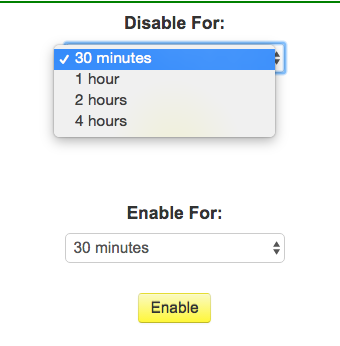
MMGuardian Disable Issue

Both of these drop downs have the same options. So what do you do if you want to undo a Disable action? When I clicked Disable a 2nd time I got an error message saying the phone could not be reached. That’s a bug of some kind.

When I clicked Enable for 30 minutes everything returned — but what happens when the 30 minutes expire? Does it return to disabled? (It stays enabled — this is just a poorly structured UI. The options shown in this screen should change based on the Time Limits screen.)

MMGuardian for iPhone costs $20/year and there’s no family plan. MMGuardian for Android costs $35/year but there’s a $70/year family plan. I think MMGuardian (or something like it) is a necessity for an Explorer’s Android, but for an iPhone Explorer it’s not as simple. Most of what MMGuardian does, except for the web filtering, can be managed through the iPhone’s native restrictions.

Even so, I would have said MMGuardian is worth it for many Explorers — but I give the vendor two demerits for failing to document the uninstall procedure! This is particularly odd because it is well documented for Android devices.

Perhaps it is not documented because, unlike Android phones, there’s nothing to stop the restricted user from doing the uninstall themselves. In Settings:General Scroll down to find a Profile or Managed phone setting. Tap on it until you get the remove icon, then remove the profile. Now delete the MMGuardian app. Deleting the Profile will cause MMGuardian to send a notice to the Guide’s email address.

Once you’ve done this (but not before), you can go to family.mmguardian.com Settings and Delete the number from the MMGuardian account.

I get that MMGuardian doesn’t want to admit that device management can be so easily circumvented, but hiding the documentation is doing them no favors. It’s not something they can fix by the way, Apple has historically required ‘the consent of the governed’ for Mobile Device Management (they are changing that for schools, where, shockingly, the governed are rather rebellious).

In practice, for the Guide/Explorer relationship, “consent of the governed” isn’t necessarily a bad thing. Even in the parent/child setting, the removal of this kind of protection can lead to a productive conversation on the relative merits of a $50 flip phone.

Beyond the missing uninstall documentation it’s frustrating to be unable to block access only to iTunes movies and TV shows (blame Apple!), but it’s very helpful to be able to manage restrictions without physical control of the iPhone. The web filtering and reporting options, which (as with Android) require use of the MMGuardian browser, are a big improvement on Apple’s built-in controls. What we really need, of course, is for Apple to provider more options for MMGuardian and others to use.

The Technical Addendum

I’m going to get more technical here than I usually do in a Best You Can Be post. I mentioned that Apple is responsible for the gap between what MMGuardian can do on an iPhone vs. an Android phone, here I’ll explain why that is.

Apple and Google took very different approaches to phone design. Apple’s focused on security, privacy, reliability, usability and control, including directing phone revenues and services through Apple.  Google has focused on maximizing advertising revenue and extracting behavior data while minimizing overhead.

These different approaches have produced quite different devices. Apple’s approach means there’s effectively no malware on Apple iPhones, but developers can only do what Apple allows. Internal security is strong and developer violations are punished. Google’s approach means Android malware is now common, but developers have a lot of freedom for good as well as evil.

In the case of remote restriction what Apple allows is determined not by the needs of Guides and parents, but by the needs of corporations and, to a lesser extent, schools. The smartphone industry, including Apple, calls this set of capabilities “Mobile Device Management” or MDM. To a large extend Apple’s Mobile Device Management options for remote management use the same software infrastructure as the iPhone Restriction settings.

Apple provides Mobile Device Management through an application called Profile Manager that runs on their low OS X server software or through Configuration Profiles managed by Apple Configurator. Other vendors do similar things (and usually manage Android phones too), including JAMF Software’s Casper Suite, Cisco’s Meraki Systems Manager, and Mobile Iron’s Enterprise Mobility Management.

MMGuardian is providing a simplified from of MDM for Guides and Parents, and they’re adding in some custom built web filtering (which also works on Android). Unfortunately, like everyone else in this iPhone space, they’re limited to what Apple supports. Apple, so far, has been mostly supporting what corporations are asking for, not what we might want.

- fn -

[1] After writing this I learned that one can disable TV, Movies or Apps separately in manual restrictions. I thought one could only set age limits. I would like MMGuardian to provide separate controls, not an all or none setting.

Tuesday, May 17, 2016

MMGuardian - review of an Android parental control and usage monitoring application

One of the last pieces of my book project, and a part of my upcoming local presentation on May 25th, is a discussion of smartphone restrictions and controls. 

I’m familiar with iPhone on-device restrictions, but Google didn’t build anything like that into Android for phones. Android users need to find a 3rd party solution.

Finding that solution isn’t easy. This isn’t the 1990s; most of the journalists that used to write about these things are out of business. I used geek-power to narrow my options to two products - Screen Time and MMGuardian. This post has my initial impression of MMGuardian, I’ll do another one on their iPhone product then I’ll try Screen Time for Android.

MMGuardian is easy to setup. You start by installing their app on the target Android phone (typically an Explorer or teen’s phone); you can find it on Google’s Play Store or from the MMGuardian web site. The app is called “MMGuardian Parental Control”, not to be confused with a different app that can be installed on a Guide’s phone for remote management. 

There’s a free two week trial, and for once you don’t start by entering a credit card. To enroll you launch MMGuardian Parental Control and complete a short form. After initial launch a second app will be installed called MMG Browser. That’s what an Explorer will use in place of Chrome; MMG Browser.app works with MM Guardian’s Web Filter service. (I assume MMG Browser is a wrapper over Chromium, Google’s web browser platform.)

I used the online web interface to do remote management of my Android test phone. Go to family.mmguardian.com and enter the credentials you setup earlier using MMGuardian Parental Control.app. The “user name” is your email address. 

There’s a good range of controls …

MM Guardian

In my early testing the commands send from MM Guardian’s acted within a few seconds, only the very first message failed.

App Management is quite different from iOS. iPhone apps can only be installed from Apple’s store, so it’s easy to disable installation. Android apps can be installed from any source, there doesn’t seem to be a simple way for developers to block all installations. Instead MMGuardian creates a list of apps that are allowed or blocked based on what is on the Explorer’s phone; new apps are blocked until review.

MM Guardian is looking pretty good so far. It’s $35 a year for a single phone, or $70 a year for up to five Android phones.

Monday, April 18, 2016

Google - Accessibility isn't only about vision and touch, cognitive disabilities are neglected.

Google got some good press recently for a $20 million dollar accessibility project developer grant. It’s a good initiative, but Google’s Accessibility site doesn’t consider cognitive issues.

That’s a shame, because there’s a lot Google could do. They could, for example, read my book (not published yet, but I’ll provide preprints). Of course Google isn’t alone, neither Apple nor Microsoft nor Facebook have built in support for teens and adults with cognitive disabilities. Depending on how one defines cognitive disability this is a much larger population than adults with visual and mother disorders.

There’s a lot Google could do, and there are good commercial reasons to address this need. Just as wheelchair sidewalk curb cuts have been a boon to strollers and elder walkers, cognitive adaptations also apply to many elderly and most children.

What kind of adaptations?

The obvious adaptations are scalable interfaces, such as simplified versions of Google Mail or Google Calendar. There are other angles to consider though. In Smartphones for All - Using iPhone and Android to build independence for atypical minds I write about the role of Explorer and Guide. Google, Facebook and Apple could explicitly support the role of the Guide, including delegation of identity. The Big Three could provide a formal way to apply restrictions designed for under 18 to over 18 adults with guardians or delegated Guides.

Some of these adaptations take more work than others, but in many cases we’re more than half-way there. Web services that work with both smartphone apps and a Chrome browser with Profile support enable the Guide role today, they can be extended and formalized.

The first step is for Google, Apple and Facebook to put cognitive disabilities on their roadmap. I like to think they just haven’t known how to start. All they need to do is read this blog post…

Thursday, March 24, 2016

Smartphone for All: Facebook risks - predators and porn

The Facebook chapter of Smartphone for All keeps growing. I think I’m over the worst of it. I’m hopeful it will be particularly helpful, it’s going to feature in a May presentation I’m doing in the Twin Cities.

 One of the tricky sections was figuring out what to say about Facebook pornography. Here’s my current draft, I may move the “why Facebook anyway” part to a different section …

Social media is risky for everyone. Many professionals either abstain from Facebook, use a pseudonym, or read but never interact. So why am I writing a chapter about Facebook use?

I’m writing about Facebook because many teens and adults want to use Facebook, and it’s much easier to help navigate than, say, Snapchat. Facebook is hard to avoid; it’s the primary way many of us learn about community news, events, and social activities. For many users Facebook is a primary news source.

Facebook is also a social experience. For most neurotypical users it’s only one of many social experiences, but many Explorers have limited social options. For them the social connections is particularly powerful.

Facebook can also be an opportunity to learn about social interactions with a Guide’s help. Especially if an Explorer uses a pseudonym (see below) there’s an opportunity to make social mistakes that a Guide can help with. Many Explorers only learn through experience.

Assuming an Explorer is going to use Facebook, what are the risks to watch for in addition to the social mistakes that every Facebook user experiences?

I know of two related risks that can be a special problem for Explorers and and other vulnerable users: sexual predators and pornography.

I’ve been unable to find any academic or police data on sexual predator activity on Facebook. A 2012 Reuters article⁠1 tells us have read that Facebook uses AI type software to detect predator activity and that “The National Center for Missing and Exploited Children processed 3,638 reports of online "enticement" of children by adults last year, down from 4,053 in 2010 and 5,759 in 2009.” Although only a fraction of incidents are likely reported the downward trend is encouraging. Facebook is probably relatively risky territory for predators, though even one can do a lot of damage⁠2. Every Guide will need to measure this risk for both male and female Explorers, but as social networks go Facebook is likely safer and easier to monitor than most.

Pornography is a more complex problem. Facebook’s March 2016 terms of service⁠3 say “You will not post content that: is hate speech, threatening, or pornographic; incites violence; or contains nudity or graphic or gratuitous violence.” In practice Facebook relies entirely on investigating complaints, it doesn’t actively seek exceptions. I’ve seen Facebook investigators decline to act on (closed) Group content that flagrantly violated the terms of service.

Whatever Facebook may claim, as of 2016 anyone actively seeking pornography on Facebook will find it, either by information exchanged at school or through Facebook itself. Of course most teens and adults won’t bother to look, if they have unrestricted web access they will find a vast array of pornography elsewhere. Facebook pornography is really only a problem for users with Facebook access but restricted web access, including children and many Explorers.

Some Guides will, because of personal values or Explorer issues, want to monitor and block extended access to Facebook pornography regardless of related problems (there’s no way to prevent initial access). Other Guides and Explorers may not be concerned by pornography alone. Unfortunately there are two related problems that favor monitoring and restriction.

One problem is that Facebook shares a lot of data among Friends, including an Explorer’s Friends, Groups⁠4, and Likes — not to mention their posts and comments. An Explorer may unwittingly share Facebook pornography with grandparents, siblings and friends.

Another problem is that nobody creates pornography as a charitable enterprise. Facebook pornography has to make money, and since it’s technically banned it can’t rely on the usual advertising or game revenue. Facebook pornography has only a few ways to make money, including inducing Explorers to install ransomware⁠5 and other forms of malware.

Until an Explorer advances to unrestricted web access, it’s probably a good idea to monitor for pornography delivered through Facebook Groups, Friends, and Pages and to work with an Explorer to remove the offending items. A Guide may choose to report issues to Facebook, but the results can be disappointing.


anImage_15.tiff

1 http://www.reuters.com/article/us-usa-internet-predators-idUSBRE86B05G20120712

2 http://www.telegraph.co.uk/news/uknews/crime/9275731/Facebook-sex-predator-jailed-and-banned-from-using-the-site.html

3 https://www.facebook.com/terms

4 In theory only Public Groups. In practice information on closed groups can leak out as well.

5 Ransomware encrypts a user’s storage device and demands cash to make user data available. As of 2016 it’s a very profitable business.

Tuesday, March 22, 2016

Managing Explorer credentials with iOS 9.3 Notes.app and Android alternatives

An updated chapter from my smartphone book, revised with yesterday’s release of iOS 9.3 Notes.app:

An Explorer starts out with a smartphone unlock password (or PIN) and at least one username and password for their Apple iCloud account or their Google account. We call these usernames, passwords and other account information. “credentials”. Over time an Explorer will need credentials for everything from bank accounts to utility bills to social networks. Even if a Guide is conservative about adding new Explorer services it’s not hard to end up with 50 or more sets of credentials to manage.

For each Explorer credential a Guide needs to know the “username” (sometimes it’s your Explorer’s email address), password, site name, and site address. Unfortunately for many sites today you’ll also need to write down what “secret question” responses you provided when registering. This is even more important if you are very careful about security, and treat each secret question response as yet another unique password.

You could make this easier by reusing the same password for every site. Many people do that, but when hackers steal credentials from any site they try them on every site. You really don’t want to use the same password for a local newspaper and for a Guide’s bank account.

Guides need to create “strong” passwords for Explorer email accounts, bank accounts, Amazon accounts and the like. One way to create a strong password is to combine two randomly selected words form a dictionary, capitalize one or two letters, and mix in some numbers and a symbol like $#&:;. Avoid letters and numbers that can be confused with one another, like l and I or O and 0.

There’s no way any of us can keep secure credential information in in our heads. We have to write it down, and, because you really don’t want to lose password information, you need to have two copies.

The two copies also need to be in different places. Why two places? Well, imagine that you’re storing your passwords on your phone. One day you need to unlock your phone, but you don’t remember the phone password. If the passwords are only on your phone you won’t be able to get to them. Even if your phone is backed up the backup won’t help you, because you won’t be able to restore it without the phone password.

There are two approaches to credential management that work on both Apple iPhones and on Android smartphones. One approach is to write them by hand on paper and make a copy of the paper. This approach is approved by security experts, but it’s tedious to keep the list updated and to carry a copy in your wallet. (A Guide can do similar things with a document on a secure computer, but that’s beyond the scope of this book.)

A second, more complicated, approach is to use secure password management smartphone software, like 1Password.app. You can optionally have 1Password data stored “in the cloud” and available through a web browser; most security experts avoid that however. I strongly recommend you print out your 1Password credentials periodically, if you’re phone is lost or destroyed you don’t want to rely on Apple’s backup software. Make sure you print out your 1Password password too!

1Password is too complex for most Guides and Explorers though. What about just keeping credentials in a Note on your smartphone?

If a Guide is using and Android smartphone this can be a risky option. As of early 2015 many lower cost Android smartphones are not truly secure. Google’s Note application, Keep.app, doesn’t support Note encryption. So on an Android device I’d recommend using 1Password.app or one of its competitors — unless you are confident the Android device uses strong encryption and it is secured with a strong password.

If a Guide is using an iPhone with iOS 9.3 or later Apple’s Notes.app is a good, simple way to store an Explorer’s credentials. The iPhone itself has quite good security, and you can create an additional Notes.app password and use it to lock one or more individual Notes. iPhones that support TouchID (fingerprint unlock) make it easy to access locked notes. Just be sure to add the Notes.app password to your document and to print out the Note when it changes.

This approach is simple and secure, and it’s safe as long as a Guide keeps printed copies. It’s easy to accidentally delete critical information when editing a Note, and of course phones get lost and broken. Paper backups are reliable.

There’s another advantage to the use of secure Notes on an iPhone; many Explorers will learn this technique and in time independently maintain their own credentials. In this case the Guide’s role is to be sure that there’s a printed backup!

Friday, March 04, 2016

Managed identity for the special needs Explorer: iCloud makes aliasing easy

From Smartphone for all …

When you first begin supporting your Explorer a single address for them to send and receive email is fine. You may find, however, that you want another, secret, address for your Explorer. You might not want to expose their private email address when signing up for Facebook for example. You may not want them to be able to reset their bank account password. With experience you’ll find many occasions where want to use an email address for an Explorer that sends email to a Guide.

There are three ways to create this kind of email address for an Explorer, depending on what the Guide is familiar with.

If the Guide is using iCloud things are very simple. iCloud email has elegant support for up to 3 “aliases”. A guide can create an “alias” for an Explorer; that email becomes the Explorer’s “managed identity”. Here’s an example of an alias created for a famous Explorer - Meriwether Lewis of Lewis and Clark fame:

Meriwether Lewis alias.png

If Meriwether were my Explorer and I configured this alias on my iCloud email then I would receive email sent to mlewis_ident@icloud.com (careful, someone is sure to create this email address, I don’t use it!). I might do this so I can monitor Facebook activity and control password resets for example. (see Facebook Social and Facebook Messenger). See Apple’s support note for more information: https://support.apple.com/kb/ph2622.

If a Guide is using regular Gmail they can’t create an alias. They can, however, open a new Gmail account for the Explorer and set it to forward email. This is awkward and requires yet another password to manage, but it only has to be done once.

Lastly, technically oriented Guides will know of other email redirect options that are beyond the scope of this book. (I don’t recommend using a free redirect service however, there are too many security risks.)

All of these approaches will work to create this extra, secondary, email address. This secondary address doesn’t get entered into your Explorer’s phone, it’s just for use by a Guide, typically though a web browser like Chrome. 

You don’t need to add this second, Guide-use only Explorer email at first, but keep it in mind as you gain more Guide experience.

Why "Smartphone for all" needs to be written (and read) - special needs adults need a pocket AI too.

After reading Everyone needs an AI in their pocket I updated the “why you should read this” introduction to “Smartphones for all”

You’re reading this because your Explorer is seeking independence in a world of ubiquitous technology, technology that’s currently packaged in an Android (Google) or iOS (Apple) smartphone.  We’re growing accustomed to smartphones as our companion computers, but if you step back a bit they should inspire genuine awe, as well as some concern. The personal computer and the internet both had large impacts on society, but the smartphone, an ever present emerging artificial intelligence companion, is kicking everything up a notch. 

It’s already hard to function without a smartphone, but in time it will become almost impossible. In March of 2016 a Washington Post article⁠1 was titled Transit systems are growing too complex for the human mind. That sounds bad, but on the same day Google published an article⁠2 about the latest improvements to the “AI” (artificial intelligence) engine that provides its transit advice. Want to get around London or Manhattan or Minneapolis? No problem, just ask Google.

Everyone will needs an AI in their pocket, including the teen or adult you’re guiding. Since smartphones aren’t made to serve our Explorers I’ve written this book on how you can help them succeed. The goal of this work is to support independent living and mitigate harm that can come to a vulnerable population living with a tool of amazing, sometimes frightening, power and versatility.

anImage_9.tiff

1 https://www.washingtonpost.com/news/wonk/wp/2016/03/03/transit-systems-are-growing-too-complex-for-the-human-mind/.

2 http://googleresearch.blogspot.com/2016/03/an-update-on-fast-transit-routing-with.html

Tuesday, February 23, 2016

Smartphone for all: Promoting independence with home video monitoring

I’ve rewritten my chapter on Nest Cam use: Special needs smartphone: draft sample sub-chapter on Google Nest Cam use. In the new version I go into more detail on how video monitoring can be used to support independence. Use may be transient…

For Explorers with life-threatening medical disorders home video monitoring may be a longterm aide. For this use the Nest Cam (or other) video-active light would be active. That is, the Explorer knows when they are on video. The Nest Cam may be setup in a kitchen or living room. This kind of use is very similar to using video monitoring for elderly parents.

For many other Explorers, however, video monitoring may be a temporary aide to independent living. An Explorer may become dependent on  having a Guide nearby, when left alone they may become anxious, particularly anxious about meeting expected behavior standards. Anxiety can translate into problem behaviors, such as harassing siblings or arguing with roommates. In this case a home video monitor can be a transitional aide, a step between having a Guide at hand and going solo.

In this case the Nest Cam video on light may be either enabled or disabled; Guide and Explorer can experiment with both methods. A Guide may leave a home and observe remotely, then decrease observations and increase time away as both Guide and Explorer gain confidence. After initial use the monitor may be used very infrequently and eventually removed.

In another situation there might be a concern about what time of day an Explorer living on their own leaves for work or school. A guide might use the techniques in the Tracking Location chapter to check in this, but either an on-demand, or more conveniently, a stored video record could help. Once the concern is managed the stored video feature an be discontinued or the camera can be removed. Stored video may also help with reviewing home visitors if there are concerns about exploitation of a vulnerable Explorer.

In many cases a Nest Cam or similar video monitor may be used for a limited time, you can remove your account information and another person can use it.

Wednesday, February 17, 2016

Smartphone for All: Working with a budget

I’m still working on a Smartphone for all chapter about how to manage smartphone costs within the typical $92/month SSI disability managed residence personal spending budgets and the rules around external support, but I do have first drafts for introduction and carrier selection…

In the United States the least expensive useable and reliable smartphone mobile plans cost about $30 a month. A reliable low cost smartphone, with typical tax and shipping, costs between $120 for Android and $285 for an iPhone. That means a cost of about $840 over the typical two year lifespan of a low end Android device, or $1,000 for a refurbished iPhone (but the iPhone will last longer).

This cost is high for an Explorer on a typical low fixed income, but without careful shopping the price can be much higher. With a deluxe iPhone and a premium mobile plan total costs could exceed $2,770 over two years! Mobile carriers are good at getting consumers to pay these very high prices, but this would be disastrous for most Explorers. Even a yearly average cost of $840 to $1000 is going to require careful budgeting and control of data use, it helps that a smartphone replaces a $250 landline.

and 

It used to be quite hard to know what it really cost to buy a smartphone and buy carrier services. It’s easier than it used to be, but sorting out costs can still be confusing.

The best approach for a Guide to start by choosing a mobile service provider or “carrier” that works for your Explorer. All US carriers support both iPhone and Android, and once you choose a carrier you will have more options for choosing a device. More importantly the cost of mobile service over a two year interval will usually exceed the cost of an appropriate smartphone.

Unless an Explorer can be added to a “family plan” at an affordable rate, carriers like AT&T and Verizon are too expensive. Instead begin with a look at T-Mobile or small carriers that resell big carrier services. The latter includes Republic Wireless, Consumer Cellular and Ting Wireless. 

Ting Wireless is a good reference point. Their web site is a marvel of clarity. With Ting customers purchase base capacity and overage fees are relatively affordable. Ting allows alerts and usage caps to help users stay within their budget — those are big features for low income users.

A typical Explorer may use less than 60 minutes of “talk time” a month, less than 100 SMS messages (ex: Facebook Messenger is free), and 500 MB of data no video. At Ting Wireless those services will cost $24 a month plus “regulatory fees/taxes” (likely @ $30).

Ting, like many of these low cost no contract carriers, sells low cost devices including refurbished used smartphones. This is a cost-effective and relatively trouble-free way to purchase a smartphone. As of Feb 2016 a refurbished iPhone 5c sells for $237 and a new Samsung Galaxy sells for $110.

In some cases an Explorer will have a used device, possibly from a family member. Ting will confirm if the device works with their service.

Whichever option you choose watch for hidden fees. Some carriers have hidden “activation” fees and all carriers exclude “regulatory fees and taxes” from their list prices. T-Mobile often hides its best deals, Google will help find them. Even if you don’t end up using Ting Wireless, their prices make a good comparison.

In terms of supported smartphone use I wonder how often families “loan” a device…

Wednesday, February 10, 2016

Smartphone for all: "Parental" controls and managing messaging abuse

It’s hard to get good information on managing smartphone use for a vulnerable person — aka “parental controls”. Especially for Smartphones.

Vendors sites often promise more than they can deliver and provide little information on how they work. Vendors are also understandably reluctant to discuss side-effects and problems. The tech resources I trust tend to dislike the whole idea of parental controls (writers are too young!), and Google search results are dominated by vendor sites, spam blogs, and under-resourced newspaper columns. Parents and “Guides” (supporters of vulnerable users, aka “Explorers”) are truly at sea.

Ok, so “At sea” is a bit polite. Screwed is probably more accurate. The next time your TV tells you that that it’s “easy to monitor your child’s smartphone use” you have my permission to put a brick through the screen.

It’s hard to get reliable information, but I need to cover this topic in my smartphone for all book. So in this post I’m going to share my current impressions — I’d love to get comments here or elsewhere. My impressions are certain to change as a I learn more. For insight on Android solutions I need to credit a review by Brian Hall [1]; just ignore anything he says about iOS and iPhones. For example, he is impressed by the ability of third party Android apps to track location or limit app installation — but those capabilities have long been part of every iPhone. I don’t blame Brian, it’s hard to know both Android and iOS [2] and content farm writing is hard work.

My impressions:

  • Brian’s article focuses on filtering and restricting rather than monitoring. For a vulnerable adult I think monitoring is just as important — but it’s harder to do.
  • iOS (iPhone) has far better built-in restriction options than Android, but it needs better texting/messaging controls and it needs time limits [3]. If you want to restrict or eliminate Text Messaging on a stock iPhone you need to both disable iMessage [4] and have a mobile carrier that allows restriction or monitoring of SMS texting (typically for a non-trivial monthly fee).  A parent or Guide may consider something like Facebook Messenger (https://www.messenger.com/) [5]. Messenger’s web client makes it easier to monitor than SMS or iMessage — assuming one has control of an Explorer’s credentials. It can be used separately from Facebook.
  • It’s easier to extend Android than iOS, so Android plus a separate app and service has some advantages over iOS. This may be particularly true for texting controls. I don’t know how these impact device reliability or usability, I read that some of them are difficult to install. From Hall’s review I’d say Norton Family Premier is the only solution worth looking at, but it has weak texting/messaging controls
  • This party solutions for iOS leverage the tools Apple built for corporate iPhones. These tools are limited but they are well tested. The main strength is web filtering and monitoring, but that’s less useful in the Facebook age when, for many “Explorers”, browsers can be disabled with little impact. (Disabling the browser is easy to do on iOS, but requires a third party product on Android.)
  • Social networks (Facebook, Snapchat, Instagram, etc) can only be monitored by using a user’s credentials; that is, by assuming their identity. This probably violates the Terms of Service of these businesses and it’s too complex for many Guides or Parents to take on. I do discuss it in my book though.
My primary surprise is how hard it is to support safe use of old school SMS/Messaging. It seems to have never occurred to Apple that this would be a good option to provide, and, of course, Android defers all of those concerns to third party developers.
 
- fn -

[1] Published on a content-farm site with a name suspiciously reminiscent of Tom’s Hardware, a famous geek resource. Such is the state of the 2016 web. Once BYTE would have done a fabulous review, but it died long ago. I think we pay a price for that kind of absence.

[2] So have sympathy for me!

[3] Time limits are usually more important for children than for independent adults with cognitive disabilities. Lack of texting/messaging controls are annoying though.

[4] Log out of iMessage in Settings, then lock accounts in restrictions.

[5] Yes, Facebook, famed invader of privacy and exploiter of customers is now the “safer” option. For now!